Lecture
10: Controlling Page Layout
1. Detach and save the compressed/ zip AssignmentFilesChap10.zip that contains the documents needed to complete this lab assignment.
2. Create a Lecture10
folder on your desktop.
3. Unzip the file and place all the documents into the Lecture10 folder. The folder should have a total of 4 files.
Part 1: CSS Page Layout- One Column Page Layout with the
Navigation Menu Across the Top
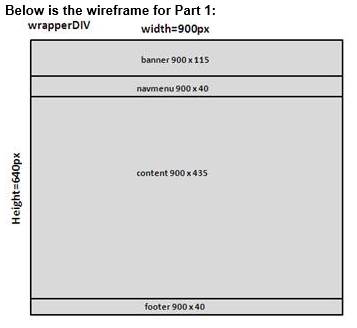
1. Open the HTML document chapter10Part1.html
in Wordpad.
Attach and link the HTML document to the CSS document - mystyle1.css.
The following link tag should be inserted in between the <HEAD>
and </HEAD> tags.
. <LINK REL="stylesheet"
TYPE="text/css" HREF=" mystyle_part1.css">
2. Open the HTML document chapter10Part1.html.
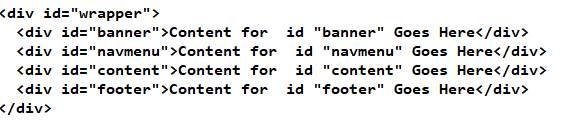
Inside the body tag, type the following DIV tags that will contain the elements
for the banner, navigation menu, content and footer layers. Save the HTML document and test launching
the page. Attached is a copy of the chapter10part1.html source code.
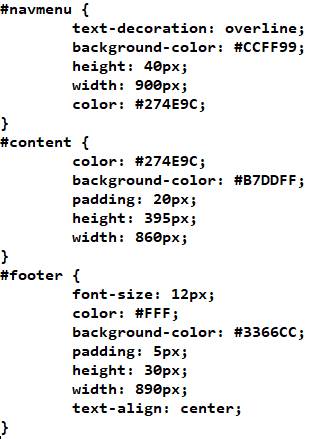
3. Open the CSS document - mystyle1.css and type the following ID rules - selector and declaration for the banner, navmenu, content and footer layers. Save the external CSS
document. Attached is a copy of the mystyle1.css source code.
4. Launch the chapter10Part1.html and verify your web page displays properly and all the navigation menu links work in your browser. See the attached chapter10Part1-web-page-output.
5. Verify if the HTML document- chapter10Part1.html
passes the W3C Markup Validation
Service. You will need to upload
your HTML document to the site- http://validator.w3.org/.
6. Verify if the CSS document – mystyle1 passes the W3C CSS Validation Service. You will need to upload your CSS document to the site- http://jigsaw.w3.org/css-validator/
Part 2: CSS
Page Layout- Two Columns with Navigation on Left Side of the Page
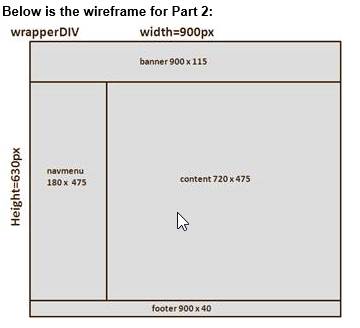
1. Open the HTML document chapter10Part2.html
in Wordpad.
Attach and link the HTML
document to the CSS document - mystyle2.css.
The following link tag should be inserted in between the <HEAD>
and </HEAD> tags.
. <LINK REL="stylesheet"
TYPE="text/css" HREF=" mystyle_part2.css">
2. Open the HTML document chapter10Part2.html.
Inside the body tag, copy
from Part1, the DIV tags below that will contain the elements for the banner,
navigation menu, content and footer layers.
Save the HTML document and test launching page. Attached is a copy of the chapter10part2.html source
code.
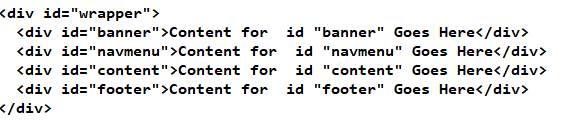
3. Open the CSS document -
mystyle2.css and type the following ID rules - selector and
declaration for the banner, navmenu, content and footer layers.
Save the external CSS document.
Attached is a copy of the mystyle2.css source code.
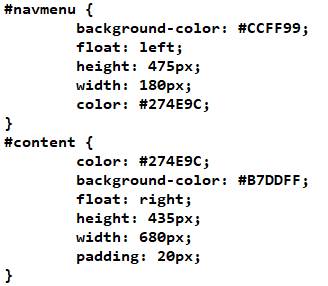
4. Launch the chapter10Part2.html and
verify your web page displays properly and all the navigation menu links work
in your browser. See the attached chapter10Part2-web-page-output
5. Verify if the HTML document- chapter10Part2.html
passes the W3C Markup Validation
Service. You will need to upload
your HTML document to the site- http://validator.w3.org/.
6. Verify if the CSS document – mystyle2 passes the W3C CSS Validation Service. You will need to upload your CSS document to the site- http://jigsaw.w3.org/css-validator/
Submit your work:
1. All the following files are required: chapter10Part1.html, msytyle1.css, chapter10Part2.html and mystyle2.css
2. Zip up your folder and upload your Chapter10 compressed folder to the Canvas Lecture 10 Lab Assignment drop box.